OpenClaw Complete Setup Guide 2026
From Zero to Your Own AI Assistant (Kept Up-to-Date)
 العربية
This is the complete, no-BS guide to setting up OpenClaw. Whether you're running it on a Mac Mini, a VPS, or a Raspberry Pi — this guide covers everything from installation to cost optimization to advanced features.
Table of Contents
- What is OpenClaw?
- Prerequisites
- Installation (4 Methods)
- Setting Up Authentication
- Connecting Channels (Telegram, WhatsApp, Discord)
- Cost Optimization & Free Models
- Installing Skills & Plugins
- Memory & Context Management
- Advanced Configuration
- Troubleshooting Common Issues
- Security Best Practices
- Additional Resources
What is OpenClaw?
OpenClaw is a self-hosted AI assistant that runs on your own hardware. Unlike ChatGPT or Claude web apps, OpenClaw:
- Runs 24/7 on your device (Mac Mini, VPS, home server)
- Connects to your messaging apps (Telegram, WhatsApp, Discord, Signal, iMessage, Slack, and more)
- Has persistent memory — it remembers conversations across sessions
- Can take actions — browse the web, run code, manage files, send messages
- Works with multiple AI providers — Anthropic, OpenAI, Google, and free alternatives
Think of it as having Claude or GPT as a personal assistant that lives in your messaging apps and has access to your computer.

Prerequisites
Hardware Requirements
OpenClaw itself is lightweight — by default, the AI runs in the cloud via API. Minimum specs:
- Any modern computer: Mac Mini M1/M2/M4, old laptop, Raspberry Pi 4+, VPS with 1GB RAM
- Always-on connection: Your device needs to stay powered and connected
- Storage: ~500MB for OpenClaw + conversation logs
Software Requirements
- Node.js 22 or newer — Check with
node --version - Terminal access — macOS Terminal, Linux shell, or WSL2 on Windows
Installing Node.js
If you don't have Node.js 22+:
# macOS (using Homebrew)
brew install node@22

# Ubuntu/Debian
curl -fsSL https://deb.nodesource.com/setup_22.x | sudo -E bash -
sudo apt-get install -y nodejs

# Using nvm (any platform)
curl -o- https://raw.githubusercontent.com/nvm-sh/nvm/v0.40.3/install.sh | bash
nvm install 22
nvm use 22
📬 Get practical AI insights weekly
One email/week. Real tools, real setups, zero fluff.
No spam. Unsubscribe anytime. + free AI playbook.
Installation
Method 1: Quick Install Script (Recommended)
The fastest way to get started:
# macOS / Linux
curl -fsSL https://openclaw.ai/install.sh | bash

# Windows (PowerShell in WSL2)
curl -fsSL https://openclaw.ai/install.sh | bash
This installs OpenClaw and opens the onboarding wizard.
Method 2: npm Install
# Install globally
npm install -g openclaw@latest

# Run the onboarding wizard
openclaw onboard --install-daemon
Method 3: From Source (Developers)
git clone https://github.com/openclaw/openclaw.git
cd openclaw
pnpm install
pnpm build
pnpm openclaw onboard --install-daemon
Method 4: Hardened VPS Install (Recommended for Servers)
For production VPS deployments, use the openclaw-ansible installer with built-in security hardening:
curl -fsSL https://raw.githubusercontent.com/openclaw/openclaw-ansible/main/install.sh | bashThis automated installer provides a 4-layer security architecture:
- UFW Firewall — Only SSH (22) exposed publicly
- Tailscale VPN — Gateway accessible only via secure mesh VPN
- Docker Isolation — Agent sandboxes run in isolated containers
- Systemd Hardening — NoNewPrivileges, PrivateTmp, unprivileged user
After install, the gateway binds to localhost only and is accessible via Tailscale. An nmap scan of your server should show only port 22 open.
Full guide: github.com/openclaw/openclaw-ansible
The Onboarding Wizard
After installation, the openclaw onboard wizard guides you through:
- Setting up authentication (API keys or OAuth)
- Configuring your first channel (Telegram, WhatsApp, etc.)
- Installing the background service (so it runs 24/7)
- Testing your first message
Setting Up Authentication
OpenClaw needs access to an AI provider. Here are your options, from best to most cost-effective:
Option 1: Anthropic Claude Pro/Max (Recommended)
Cost: $20-200/month subscription (unlimited within rate limits)
Best for: Heavy users who want the best models
Claude Pro ($20/mo) or Max ($200/mo) subscriptions give you OAuth access with generous rate limits. This is the recommended setup for serious use.
# Run the setup token command
claude setup-token

# Verify it worked
openclaw models status
The claude setup-token command opens your browser to authorize OpenClaw with your Anthropic subscription.
Option 2: Anthropic API Key
Cost: Pay-per-use (~$3-15 per million tokens)
Best for: Light users, predictable billing
- Go to console.anthropic.com
- Create an API key
- Add it to OpenClaw:
openclaw config set auth.profiles.anthropic.key "sk-ant-..."

# Or set as environment variable
export ANTHROPIC_API_KEY="sk-ant-..."
Option 3: OpenAI (ChatGPT Plus / Codex)
Cost: $20-200/month subscription or pay-per-use API
Best for: Users who prefer GPT models
# OAuth setup (subscription)
openclaw onboard  # Select OpenAI during wizard

# Or API key
openclaw config set auth.profiles.openai.key "sk-..."
Option 4: Free Models (OpenRouter, Kimi, MiniMax)
Cost: Free (with limitations)
Best for: Testing, light use, budget-conscious users
Several providers offer free tiers or free models:
- OpenRouter — Free models from various providers
- Kimi (Moonshot) — Free tier available
- MiniMax — Free tier available
- Google AI Studio — Free Gemini access
# Scan for free models
openclaw models scan --no-probe

# Set a free model as primary
openclaw models set openrouter/meta-llama/llama-3.3-70b-instruct:free
Model Fallbacks (Cost Optimization)
Configure fallbacks so OpenClaw automatically switches providers when one hits rate limits or fails:
openclaw models fallbacks add openai/gpt-4o
openclaw models fallbacks add openrouter/anthropic/claude-3.5-sonnet
Connecting Channels
Telegram (Easiest)
Telegram is the easiest channel to set up:
- Message @BotFather on Telegram
- Send
/newbotand follow the prompts - Copy the bot token
- Add to OpenClaw:
openclaw config set channels.telegram.enabled true
openclaw config set channels.telegram.botToken "123456:ABC..."
openclaw config set channels.telegram.dmPolicy "pairing"

# Restart to apply
openclaw gateway restart
Now message your bot on Telegram. The first time, you'll get a pairing code to approve your account:
# Approve your Telegram account
openclaw pairing approve telegram <CODE>
WhatsApp uses the WhatsApp Web bridge:
openclaw config set channels.whatsapp.enabled true
openclaw config set channels.whatsapp.allowFrom "+1234567890"

# Restart and scan QR code
openclaw gateway restart
# Check logs for QR code or open Control UI
Discord
- Create a Discord application at discord.com/developers
- Create a bot and copy the token
- Invite the bot to your server
openclaw config set channels.discord.enabled true
openclaw config set channels.discord.botToken "..."
openclaw config set channels.discord.dmPolicy "pairing"
Other Channels
OpenClaw supports many more channels:
- Signal — Requires signal-cli setup
- iMessage — macOS only, uses BlueBubbles
- Slack — Requires Slack app setup
- Google Chat — Requires Google Workspace
- Matrix — Self-hosted or matrix.org
- Microsoft Teams — Requires Azure app registration
See the channels documentation for each setup guide.
Cost Optimization
API costs can add up quickly. Here's how to keep them under control:
1. Use Subscriptions Over API Keys
Claude Pro ($20/mo) or Max ($200/mo) gives you unlimited usage within rate limits. Heavy users often find subscriptions cheaper than pay-per-use API.
2. Set Up Model Fallbacks
When your primary hits rate limits, OpenClaw falls back to alternatives:
{
  "agents": {
    "defaults": {
      "model": {
        "primary": "anthropic/claude-opus-4-6",
        "fallbacks": [
          "anthropic/claude-sonnet-4-5",
          "openai/gpt-4o",
          "openrouter/meta-llama/llama-3.3-70b-instruct:free"
        ]
      }
    }
  }
}
3. Use Cheaper Models for Simple Tasks
Switch models on-the-fly with /model in chat:
/model sonnet      # Use Sonnet for quick tasks
/model opus        # Switch to Opus for complex work
4. Enable Compaction
Long conversations eat tokens. Enable compaction to summarize old context:
{
  "agents": {
    "defaults": {
      "compaction": {
        "enabled": true,
        "maxTokens": 100000
      }
    }
  }
}
5. Monitor Usage
# Check current session usage
/status

# See model and auth status
openclaw models status
Installing Skills & Plugins
Skills extend OpenClaw's capabilities. They're like plugins that add new features.
Finding Skills
- ClawHub — Community skill directory
- Built-in skills in
~/.npm-global/lib/node_modules/openclaw/skills/
Installing a Skill
# Clone to your workspace
cd ~/.openclaw/workspace
git clone https://github.com/user/skill-name.git skills/skill-name

# Or create your own
mkdir -p skills/my-skill
# Add SKILL.md with instructions
Popular Built-in Skills
- weather — Get current weather and forecasts
- tmux — Control terminal sessions
- video-frames — Extract frames from videos
- nano-banana-pro — Generate images with Gemini
Memory & Context Management
One of OpenClaw's killer features is persistent memory across sessions.
Enable Memory Features
{
  "agents": {
    "defaults": {
      "compaction": {
        "memoryFlush": {
          "enabled": true
        }
      },
      "memorySearch": {
        "sources": ["memory", "sessions"],
        "experimental": {
          "sessionMemory": true
        }
      }
    }
  }
}
How Memory Works
- MEMORY.md — Long-term curated memory (like a journal)
- memory/*.md — Daily notes and session logs
- Session transcripts — Searchable conversation history
Memory Commands
# Search memory
openclaw memory search "project deadline"

# Reindex all memory (after enabling features)
openclaw memory index --force

# Check memory status
openclaw memory status
Advanced Configuration
Running as a Service (24/7)
The onboarding wizard can install a system service. To do it manually:
# macOS (launchd)
openclaw daemon install

# Linux (systemd)
openclaw daemon install

# Check status
openclaw gateway status
Cron Jobs (Scheduled Tasks)
Schedule the assistant to do things automatically:
{
  "cron": {
    "jobs": [
      {
        "name": "morning-briefing",
        "schedule": { "kind": "cron", "expr": "0 9 * * *", "tz": "Asia/Dubai" },
        "payload": { "kind": "agentTurn", "message": "Good morning! Give me my daily briefing." },
        "sessionTarget": "isolated"
      }
    ]
  }
}
Heartbeats (Proactive Checks)
Configure OpenClaw to periodically check in:
{
  "agents": {
    "defaults": {
      "heartbeat": {
        "every": "30m"
      }
    }
  }
}
Sub-Agents
Spawn background agents for long-running tasks:
# In chat
"Research competitors and write a report"
# OpenClaw may spawn a sub-agent to work on this
Troubleshooting
"Model is not allowed"
Your model isn't in the allowlist. Fix:
# Add the model to allowlist
openclaw config set agents.defaults.models.\["anthropic/claude-sonnet-4-5"\].alias "Sonnet"

# Or clear the allowlist
openclaw config unset agents.defaults.models
Bot Not Responding in Groups
- Check Telegram privacy mode:
/setprivacy→ Disable in BotFather - Remove and re-add bot to the group
- Or make the bot a group admin
Gateway Won't Start
# Check for config errors
openclaw doctor

# Auto-fix issues
openclaw doctor --fix

# Check logs
openclaw logs --follow
OAuth Token Expired
# Re-authenticate
claude setup-token

# Check status
openclaw models status
Connection Issues
# Check gateway health
openclaw health

# Full status
openclaw status
Security Best Practices
1. Use Pairing Mode (Default)
Always use dmPolicy: "pairing" (the default) so unknown senders must be approved before they can interact with your assistant. Never setdmPolicy: "open" unless you know exactly what you're doing.
2. Keep API Keys Secure
Never commit API keys to git or share config files publicly. Use environment variables or the secure auth store (~/.openclaw/agents/*/agent/auth-profiles.json). Add .openclaw/ to your global gitignore.
3. Limit Group Access
Use groupPolicy: "allowlist" and explicitly list allowed senders in groups. In public/large groups, always require @mentionto prevent the bot from responding to random messages.
4. Review and Limit Tool Permissions
OpenClaw can run shell commands and access files by default. You can restrict what tools are available and what commands can run. Review the security documentation to understand sandboxing options and tool restrictions.
5. Use a Dedicated Machine + Hardened Install
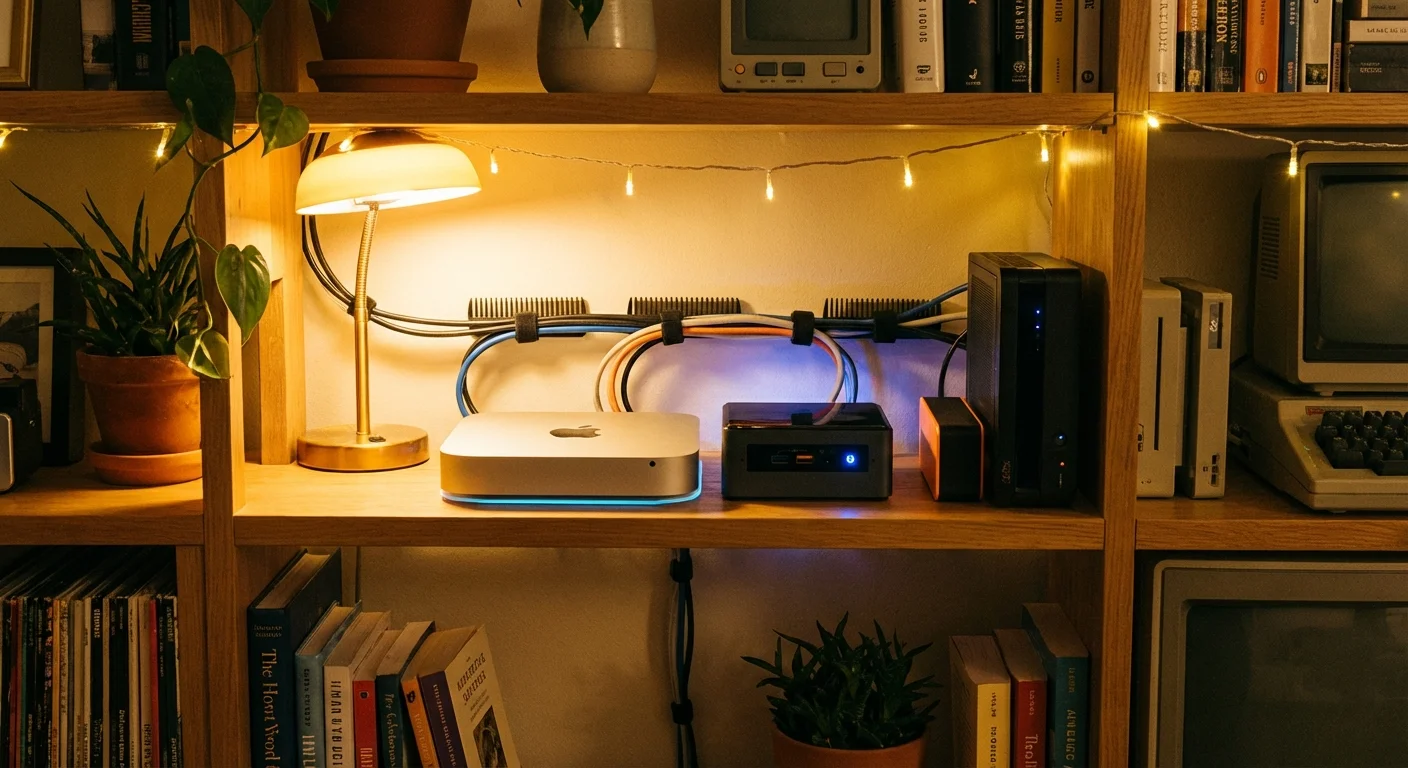
For maximum isolation, run OpenClaw on a dedicated device (Mac Mini, VPS, Raspberry Pi) rather than your primary workstation. For VPS deployments, use the hardened Ansible installer which sets up firewall rules, Tailscale VPN, and Docker sandboxing automatically.
6. Be Careful with External Integrations
When connecting to email, calendar, or other services, use read-only access where possible. Start with minimal permissions and expand only as needed.
7. Monitor Logs
Periodically check openclaw logs to see what your assistant is doing. Look for unexpected commands or access patterns.
Additional Resources
- Official Documentation
- Discord Community
- GitHub Repository
- ClawHub (Skills Directory)
- DeepWiki (AI-generated docs)
Next Steps
Now that you have OpenClaw running:
This is just the basics.
We handle the full setup — AI assistant on your hardware, connected to your email, calendar, and tools. No cloud, no subscriptions. Just message us.
Get Your AI Assistant Set UpRelated Articles
How to Connect Your AI Agent to WhatsApp and Telegram (Step-by-Step)
Complete guide to connecting OpenClaw to Telegram, WhatsApp, and Discord. Step-by-step setup, troubleshooting common errors, and multi-channel configuration.
OpenClaw Just Solved the Biggest Problem with AI Agents
OpenClaw's new human-in-the-loop approval system means AI agents can act autonomously but still need your OK for critical decisions. Supervised autonomy explained.
Meta Just Bought the Social Network Where AI Bots Talk to Each Other
Meta acquires Moltbook, the AI-to-AI social network built on OpenClaw. What this means for multi-agent systems.